Pay Now

This feature will be in the Inspire by STX v4.7 Release due out in August 2026.

Pay Now requires integrated credit card processing to be enabled.
What is Pay Now?
Pay Now allows your business to send a payment request directly to a client by text message or email.
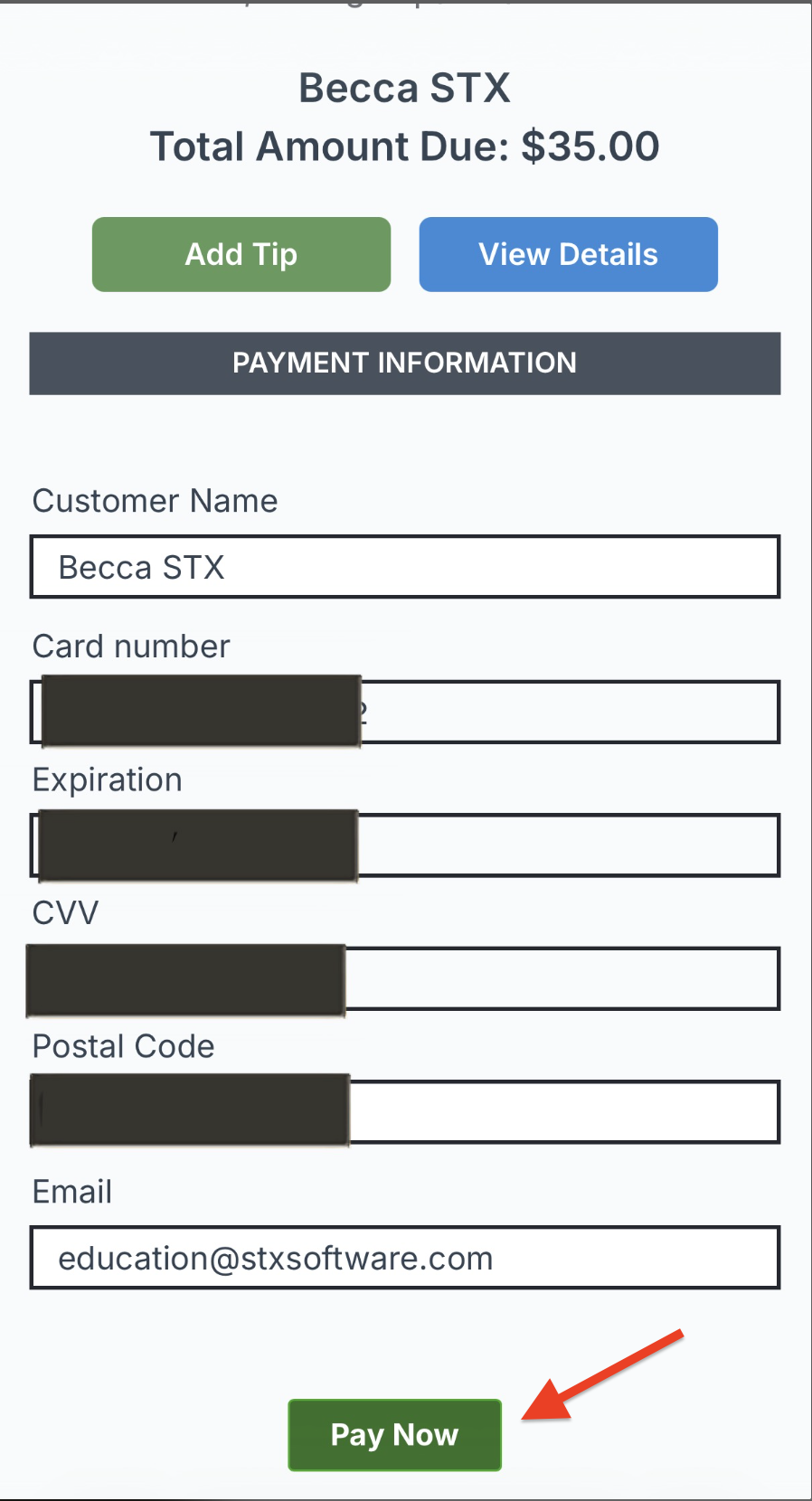
The client receives a secure payment link that allows them to:
- Pay the ticket from their own device
- Add a tip, if tipping is enabled
- Complete payment without needing to be at the checkout screen
Pay Now is a great option when you need to collect a deposit over the phone, request payment during a service, or allow a client to conveniently pay from their own device.
Enable Pay Now
Before using Pay Now, the feature must be enabled in your POS settings.
- Go to Setup > Setup POS & POS Devices.
- Check the box for Enable Pay Now.
- Optional: To receive email alerts for Pay Now payments, check the box to enable then enter an email address in the Send Email Alerts for Pay Now Payments to field.
- To send alerts to multiple email addresses, separate each email address with a comma.
- Example: info@stxsoftware.com, sales@stxsoftware.com, support@stxsoftware.com
- Click Save.
Send a Pay Now Request
Once Pay Now is enabled:
- Go to Checkout.
- Add the Client and Items to the ticket.
- Select the Payments tab.
- Select Pay Now.
- Choose Send via Text or Send via Email.
- Confirm the phone number or email address.
- Click Send.
The client will receive a link to complete their payment. If tipping is enabled, they will also have the option to add a tip before completing the payment.
Important: Entering or editing the phone number or email address from the Pay Now screen does not update the information saved on the client's card.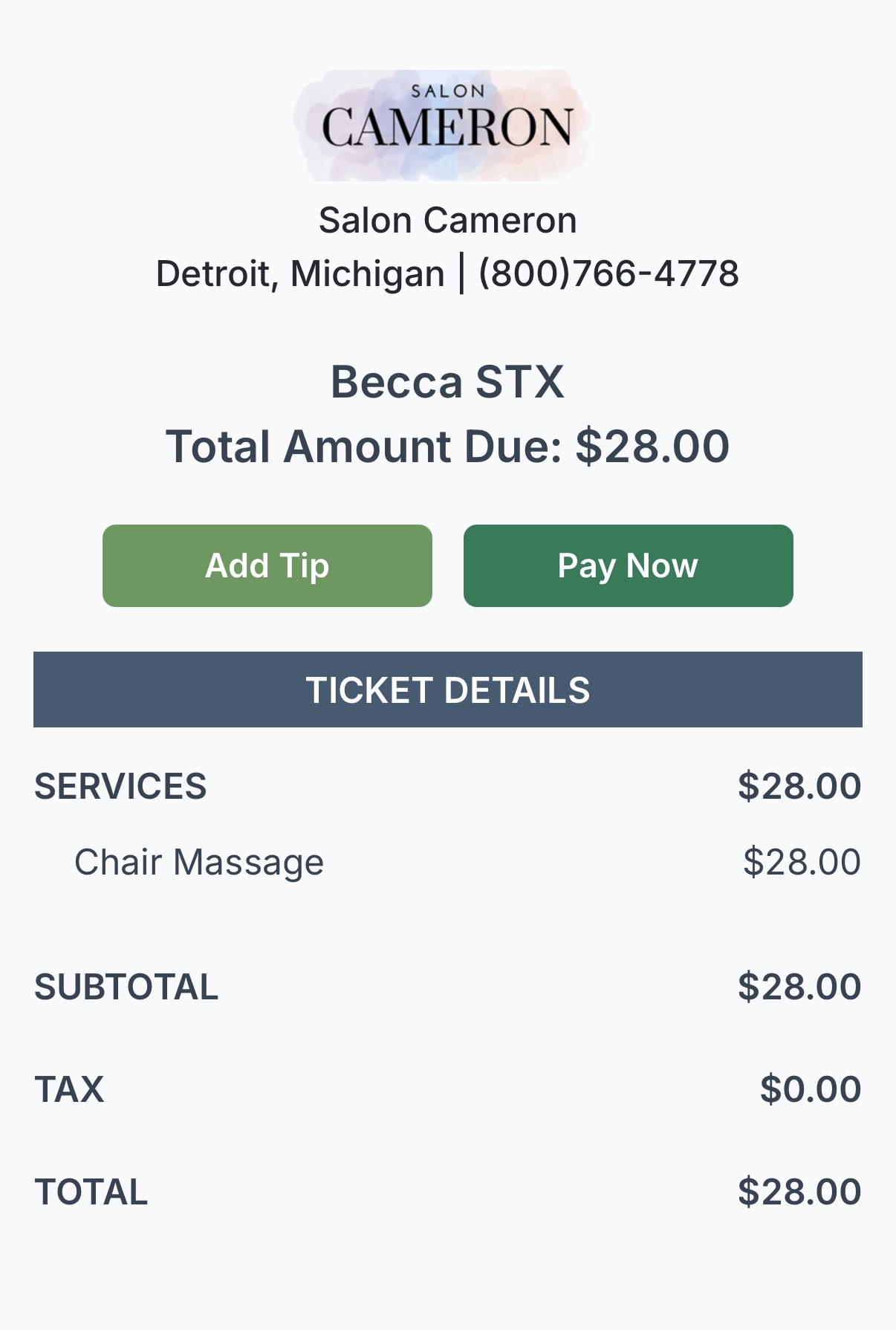
 .
. 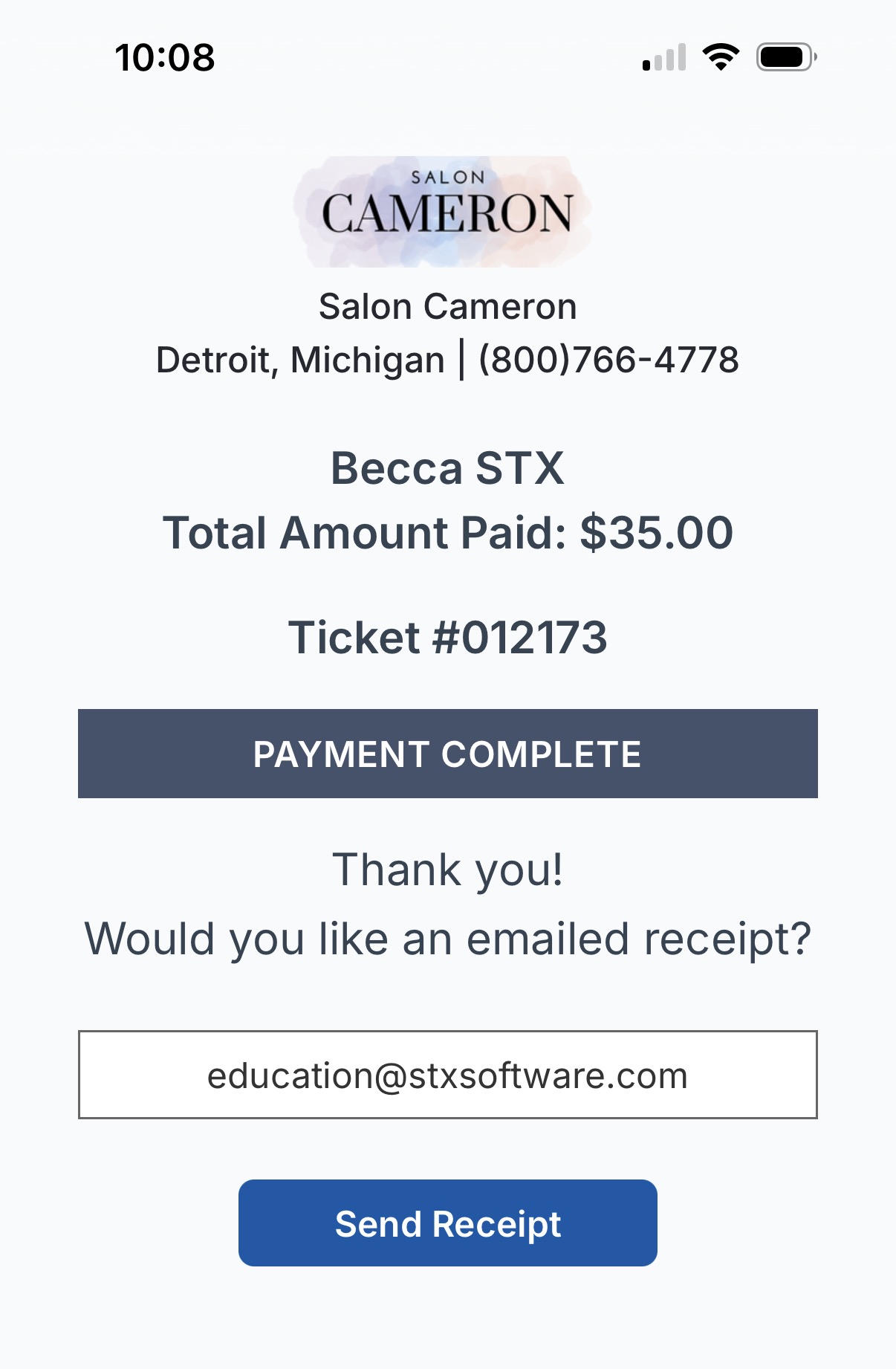
Confirm the Payment Was Completed
After the client submits their payment, refresh the Checkout page.
If the payment was successfully completed, the ticket will be completed and will appear as a completed ticket.
Hide the Tip Option
If you do not want clients to have the option to add a tip when using Pay Now:
- Go to Setup > Setup POS & POS Devices.
- Enable the Hide Tip Options checkbox.
Once enabled, the tip option will not be displayed to the client when completing their Pay Now payment.