Product List Report
Location: Reports > Setup Reports
The Product List Report provides a comprehensive view of all products in your system, helping you review and confirm that your product setup is accurate and organized to your preference.This report is especially useful for auditing your product catalog, ensuring consistency across product lines, and identifying any missing or inactive items. This report can be easily exported or printed, making it simple to share, review offline, or keep for your records.
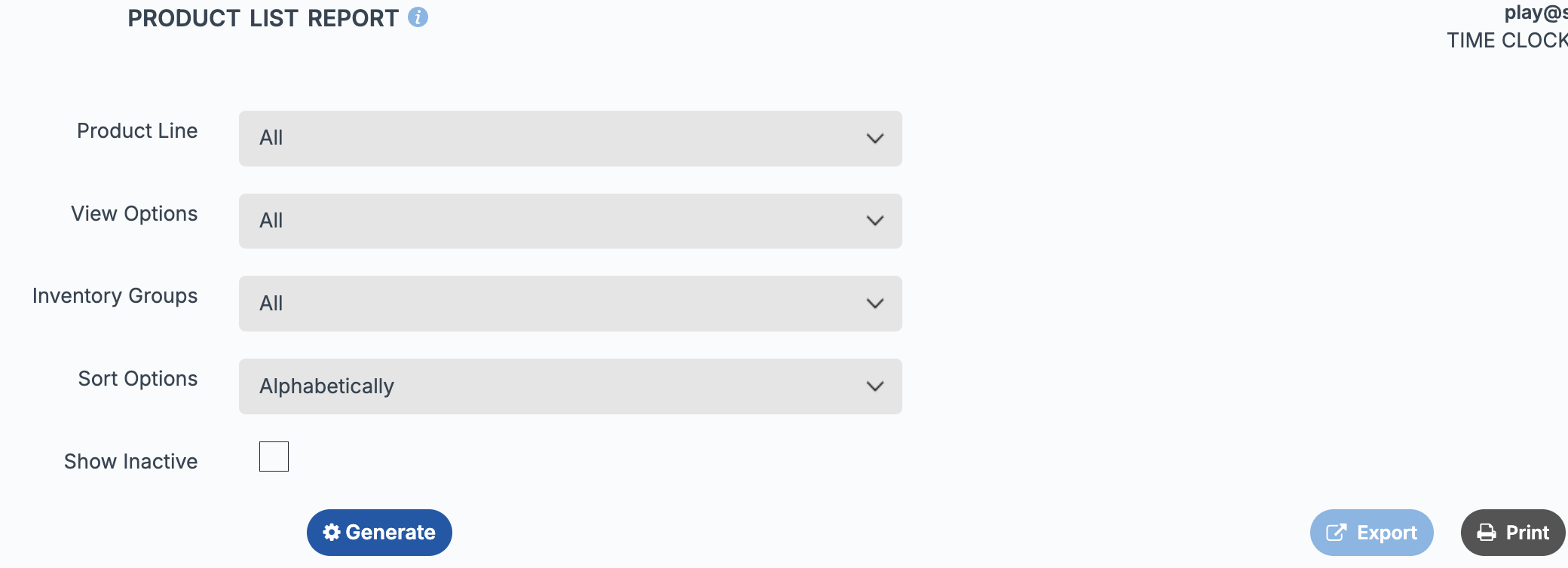
Filter Options You can customize the report using a variety of filters and sorting options to narrow down and organize your results:- Product Line
View all product lines or select a specific product line to focus on. - View Options
Choose how products are displayed: - Retail Only
- Professional Only
- All (includes both retail and professionally marked items)
- Inventory Group
Filter by all inventory groups or select a specific group. - Sort Options
Organize how products appear in the report: - Alphabetically (by product name)
- By SKU
- Active Status
Choose whether to include inactive products. This applies to both retail and professional items.
Filter Options
Product Line
View all product lines or select a specific product line to focus on.
View all product lines or select a specific product line to focus on.
View Options
Choose how products are displayed:
Choose how products are displayed:
- Retail Only
- Professional Only
- All (includes both retail and professionally marked items)
Inventory Group
Filter by all inventory groups or select a specific group.
Filter by all inventory groups or select a specific group.
Sort Options
Organize how products appear in the report:
Organize how products appear in the report:
- Alphabetically (by product name)
- By SKU
Active Status
Choose whether to include inactive products. This applies to both retail and professional items.
Choose whether to include inactive products. This applies to both retail and professional items.
Each column in the Product List Report provides specific information about your products. Products are organized by group, with the group name displayed and highlighted at the top of each section in the report.
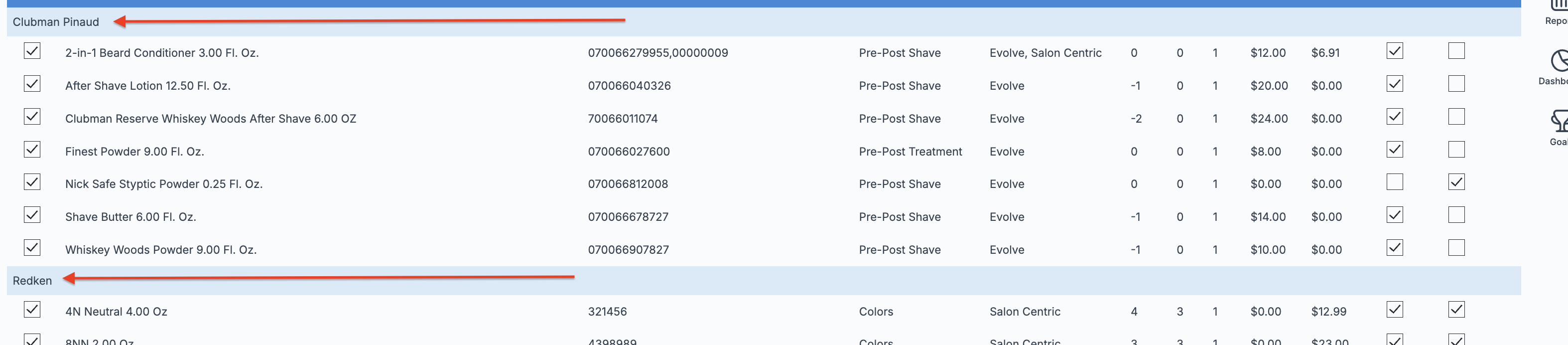
Columns Descriptions
- Active – Indicates whether the product is active. A checked box means the product is active; an unchecked box means the product is inactive.
- Product Name / Size – Shows the name and size of the product as entered during setup.
- SKU – Displays all SKU numbers assigned to the product in your setup.
- Stock Number – Shows any stock number entered for the product during setup.
- Inventory Group – Indicates the inventory group to which the product has been assigned.
- Supplier – Displays all suppliers associated with the product in your setup.
- On-Hand – Shows the quantity of the product currently available in your inventory.
- Min Qty – Displays the minimum quantity you’ve set for the product in your setup.
- Sup Min – Shows the minimum quantity required by the supplier, as entered in your setup.
- Price – Displays the set price of the product.
- Average Cost – Shows the average cost of the product based on past purchases.
- Taxable – A checked box indicates the product is marked as taxable; an unchecked box means it is not taxable.
- Professional – A checked box indicates the product is designated as professional; an unchecked box means it is not.
Each column in the Product List Report provides specific information about your products. Products are organized by group, with the group name displayed and highlighted at the top of each section in the report.
Columns Descriptions
- Active – Indicates whether the product is active. A checked box means the product is active; an unchecked box means the product is inactive.
- Product Name / Size – Shows the name and size of the product as entered during setup.
- SKU – Displays all SKU numbers assigned to the product in your setup.
- Stock Number – Shows any stock number entered for the product during setup.
- Inventory Group – Indicates the inventory group to which the product has been assigned.
- Supplier – Displays all suppliers associated with the product in your setup.
- On-Hand – Shows the quantity of the product currently available in your inventory.
- Min Qty – Displays the minimum quantity you’ve set for the product in your setup.
- Sup Min – Shows the minimum quantity required by the supplier, as entered in your setup.
- Price – Displays the set price of the product.
- Average Cost – Shows the average cost of the product based on past purchases.
- Taxable – A checked box indicates the product is marked as taxable; an unchecked box means it is not taxable.
- Professional – A checked box indicates the product is designated as professional; an unchecked box means it is not.